1- Open the link: Class List
2- Click on Microsoft.
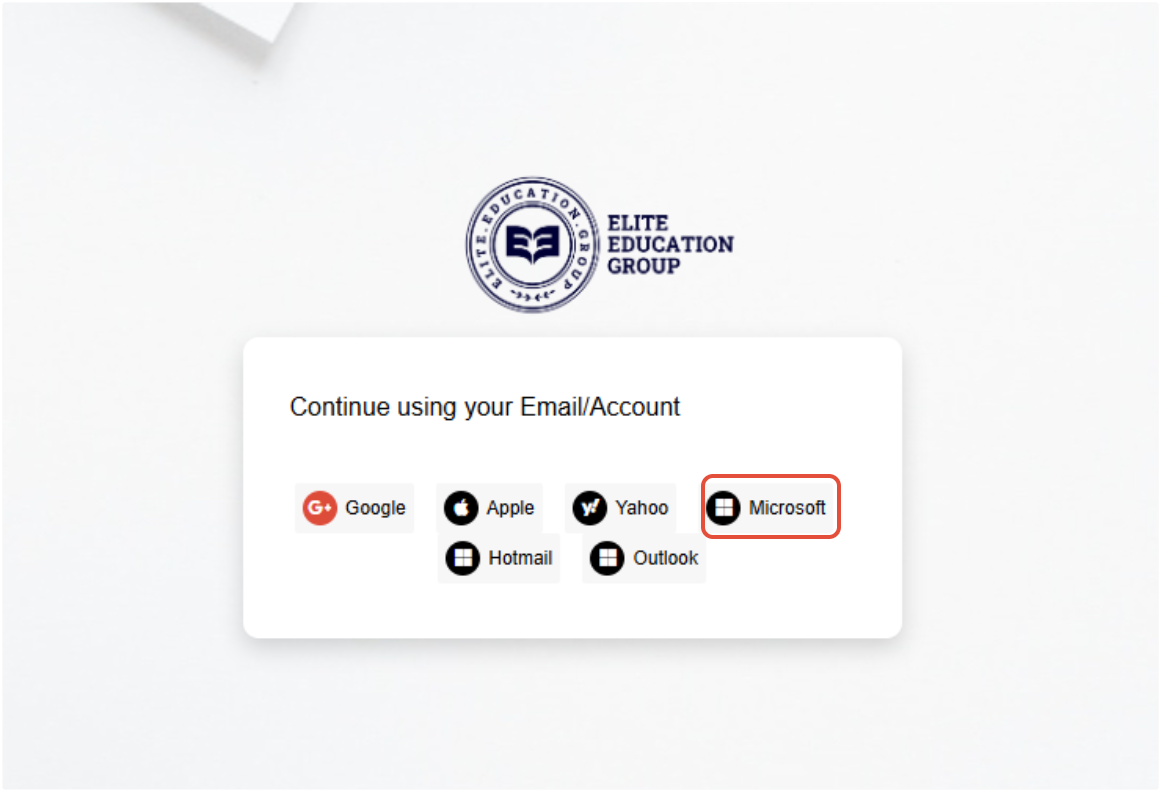
3-Login using your school email and password.
4- Click on Insights/ Grade Class List Managements

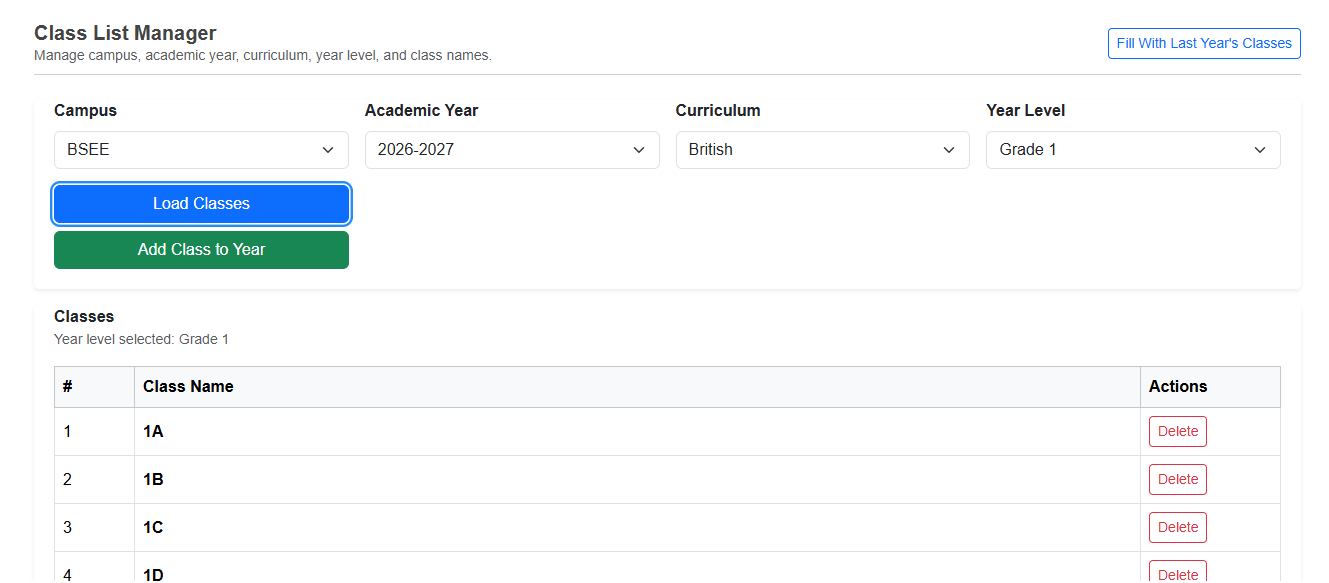
5- Select Campus, Academic Year, Curriculum and the grade level you want to create class for.
6- Click on Load Classes to view the classes already exists.
7- Click on Add Classes To Year to create new class/s.
8- Type the class name and confirm.
Was this article helpful?
That’s Great!
Thank you for your feedback
Sorry! We couldn't be helpful
Thank you for your feedback
Feedback sent
We appreciate your effort and will try to fix the article